Plans at a glance
Ospaces has four plans. Each plan includes everything in the plans before it.
| Feature | Free | Plus | Business | Enterprise |
|---|---|---|---|---|
| Pages, sub-pages and every block type | Included | Included | Included | Included |
| Databases: table, board, list, gallery, calendar and timeline views | Included | Included | Included | Included |
| Templates, quick palette, sharing and publishing | Included | Included | Included | Included |
| My Tasks, reminders, Calendar and Daily Notes | Included | Included | Included | Included |
| Projects, Goals and habits, Reading list | Included | Included | Included | Included |
| Ask AI, meetings, voice notes, quizzes and translation | Included | Included | Included | Included |
| Automations and scheduled reports | Included | Included | Included | Included |
| Export, backups and version history | Included | Included | Included | Included |
| Encrypted pages and two-step verification | Included | Included | Included | Included |
| Chart views | Not included | Included | Included | Included |
| Forms that collect answers into a database | Not included | Included | Included | Included |
| Workspace-wide search | Not included | Not included | Included | Included |
| Custom AI agents | Not included | Not included | Included | Included |
| Verified pages | Not included | Not included | Included | Included |
| Database permissions | Not included | Not included | Included | Included |
| AI usage analytics | Not included | Not included | Not included | Included |
| Audit log with export | Not included | Not included | Not included | Included |
| Zero data retention mode | Not included | Not included | Not included | Included |
Paid plans are not on sale yet, so ordinary accounts use Free today. When they open, you will upgrade from Plan in Settings. To see what your own account includes, open Plan & guide at the bottom of the sidebar.
Getting startedAll plans
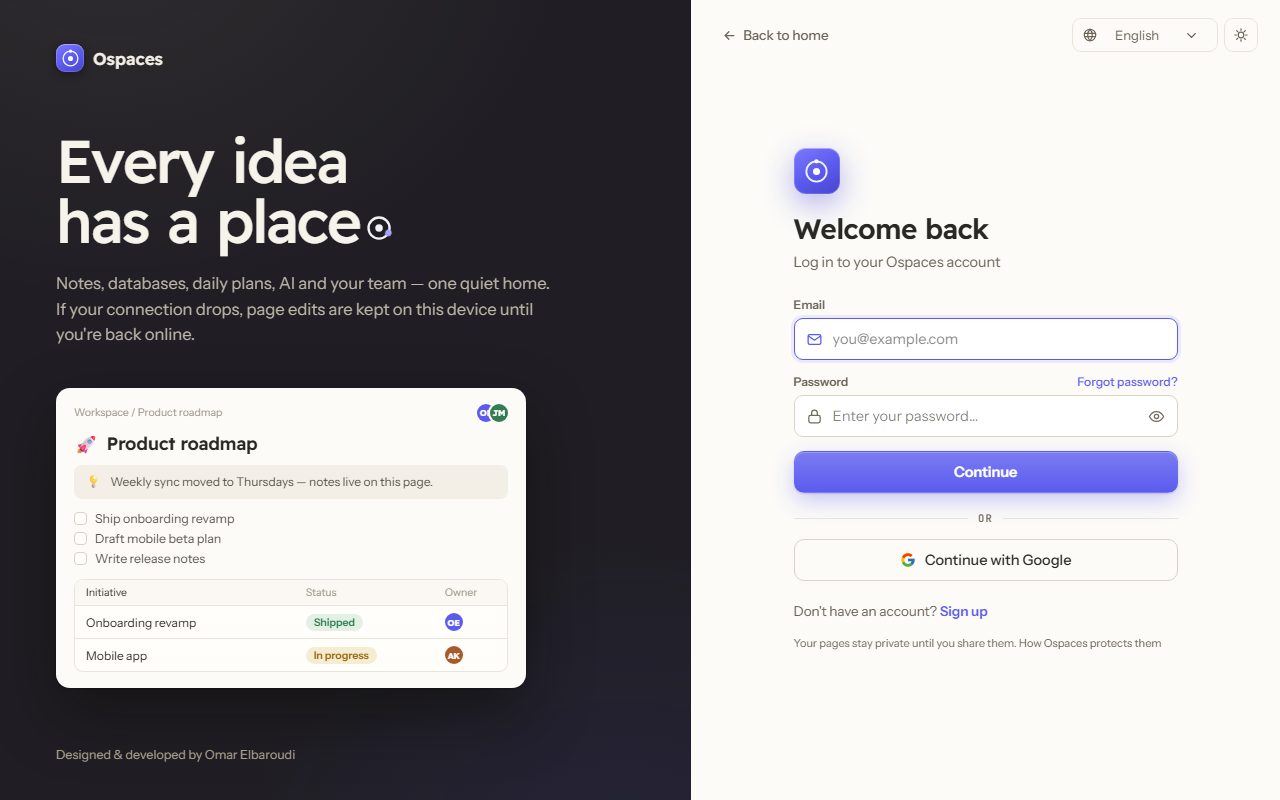
Create your account
- Go to ospaces.app and choose Open Ospaces, then Sign up.
- Sign up with your email address and a password, or with your Google account.
- Open the email we send you and confirm your address.
A confirmed email address turns on the built-in AI, which needs no key of your own, and reminders by email.
Find your way around
The sidebar on the left holds everything. Search and Home sit at the top, then New page. Below them are sections you can fold: Plan (tasks, projects, goals, notes, calendar), AI, Capture and Create. Your own pages come next, then shared pages and teams.
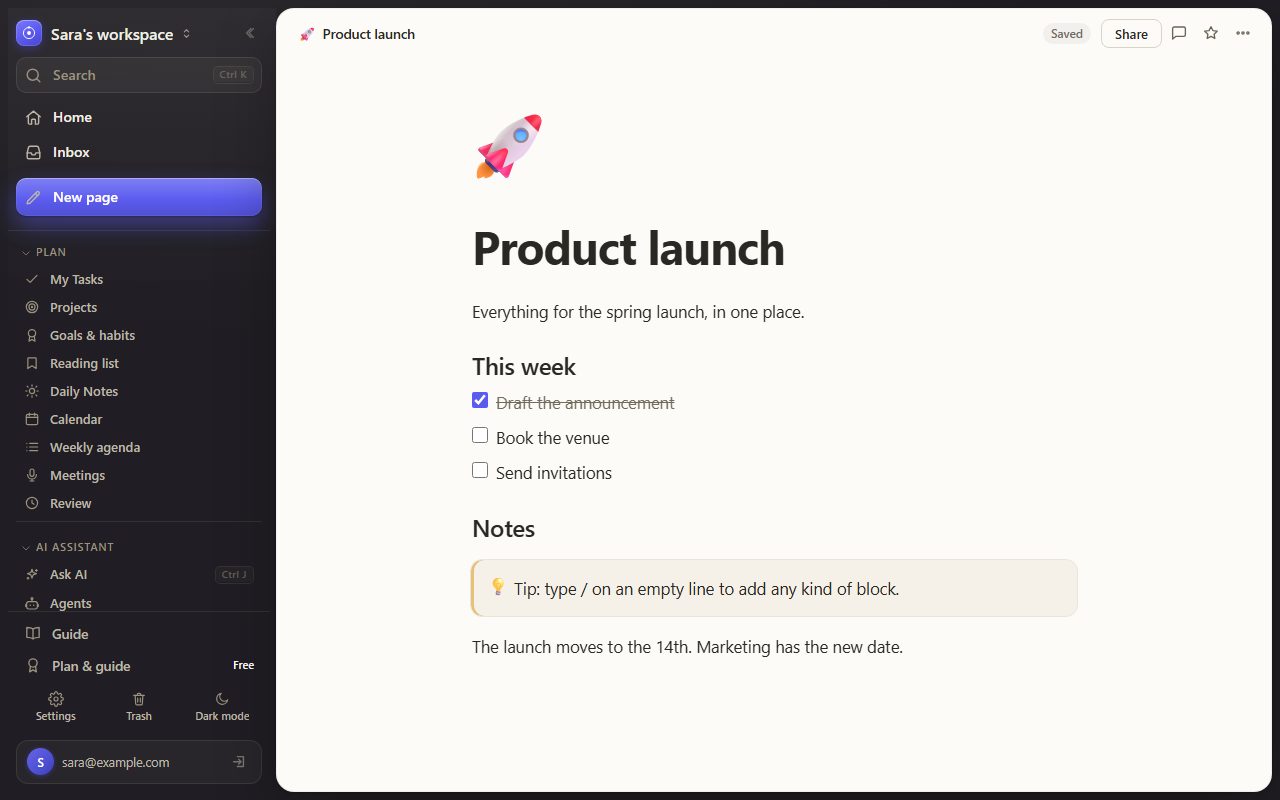
At the bottom of the sidebar are Plan & guide, Settings, Trash and the light or dark theme.
Guide, just above them, opens this guide whenever you need it.
Language, dates and preferences
Ospaces speaks English, Arabic, French, Spanish, German and Portuguese. In Arabic the whole workspace reads right to left. Change the language in Settings, under Appearance.
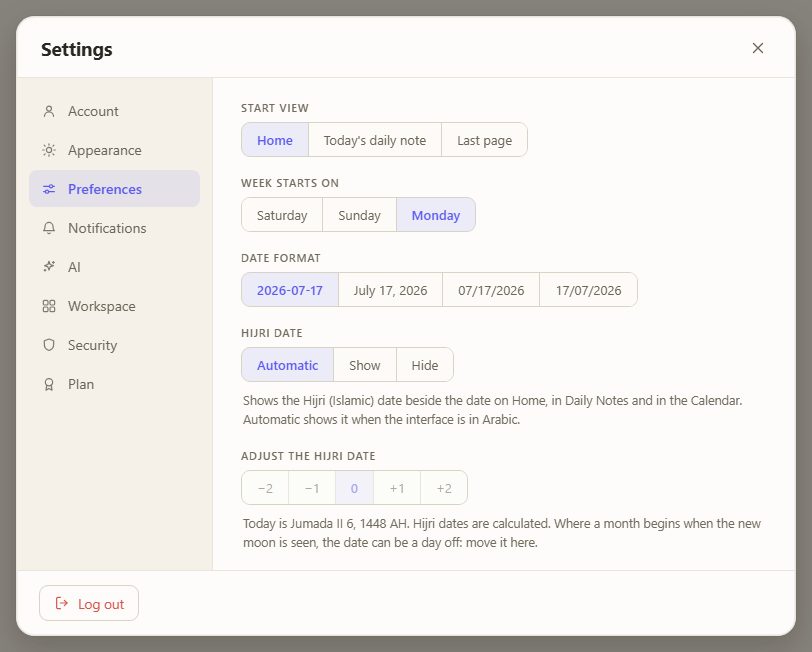
Under Preferences you choose what opens first, the day your week starts, the date format, and whether Hijri dates are shown beside the usual ones.
Pages and blocksAll plans
A page is a document made of blocks: text, headings, to-do lists, toggles, tables, columns, callouts, quotes, code, math, images, files, bookmarks and diagrams. Pages can hold other pages, as deep as you like.
- Choose New page in the sidebar, or press G then N.
- Type a title, then press Enter to start writing.
- On an empty line, type / to choose any kind of block. Keep typing to filter the list.
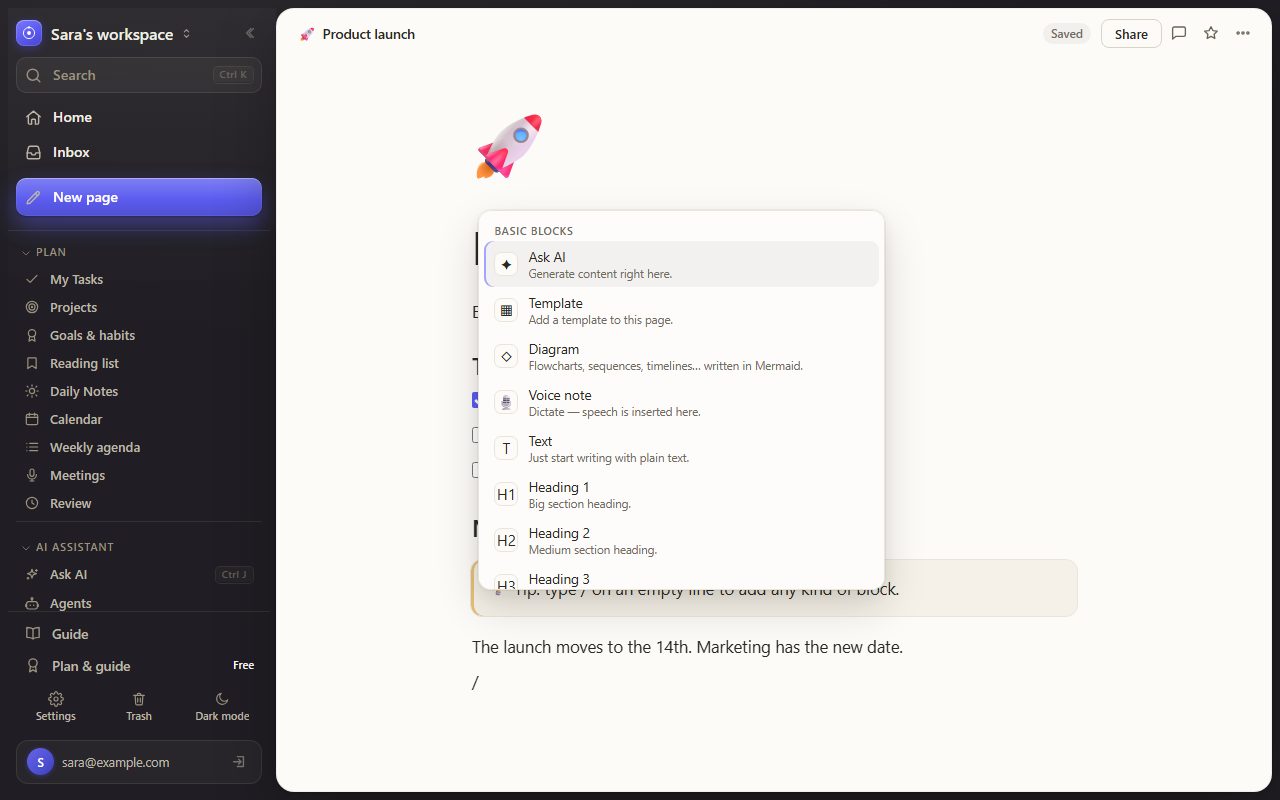
Markdown shortcuts work too, each followed by a space: # makes a heading, - a bullet, 1. a numbered list, [] a to-do and > a quote. Drag the handle at the left of a block to move it. Paste an image or drop a file to add it.
To link to another page, type [[ and the page's name. Type @ to mention a person or a date. Pages that link to the open page are listed under its title.
The page menu
The ⋯ button at the top right of a page holds its tools: Duplicate, Export as Markdown, Version history, Lock page, Encrypt page, Quiz me on this page, Translate page…, and Move to trash. Deleted pages stay in Trash until you empty it.
Editing together
People you share a page with can edit it at the same time as you. New pages use live block editing: two people typing in different blocks never overwrite each other. If you both change the same words, Ospaces keeps both versions for you to choose.
DatabasesAll plans
A database is a table of rows with typed properties: text, numbers, dates, select lists, people, checkboxes, links, files, formulas and relations. Every row is also a page you can open and write in.
- Choose New database in the sidebar, or start from a database template.
- Add properties from the last column's header.
- Add a view to see the same rows another way: Table, Board, List, Gallery, Calendar or Timeline.
There are also Summary and Budget views, for totals at a glance and for tracking spending against a limit.
Each view keeps its own filters, sorting and grouping. A database with a date and a status or checkbox also shows its rows in My Tasks and on the Calendar.
TemplatesAll plans
Start a page or a database from a template: meeting notes, project trackers, weekly reviews, habit trackers, class notes and more. Many are also written in Arabic.
- Open Templates in the sidebar's Create section, or type / on an empty line and choose Template.
- Filter by category or search by name, then open a template to preview it.
- Choose Use template. Everything it creates stays editable.
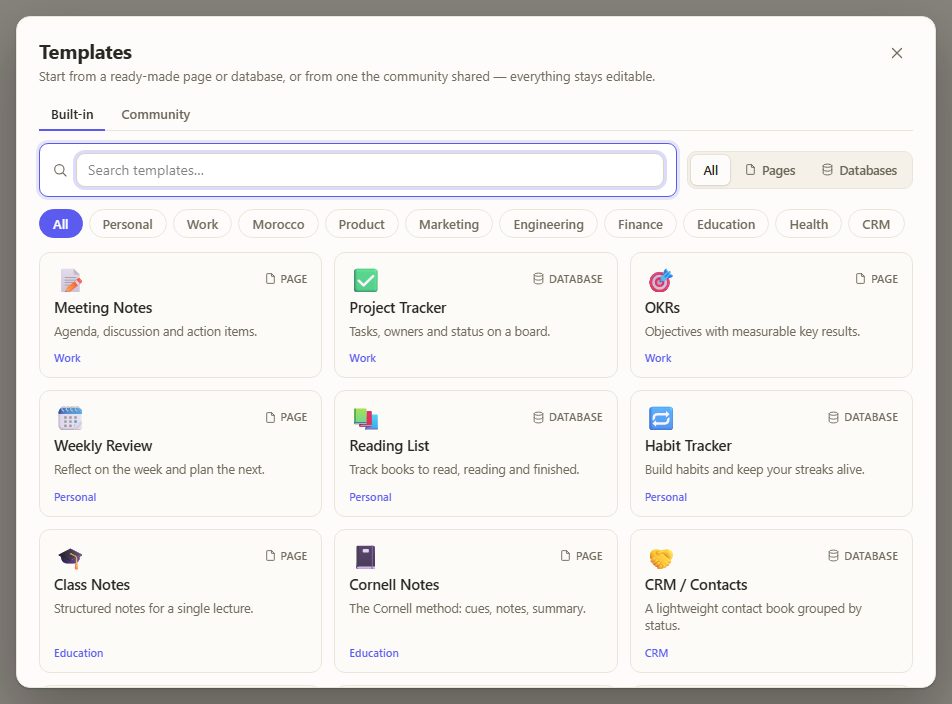
Save any page of your own as a template from its page menu. Your templates stay private unless you share them with the community.
Tasks, calendar and daily notesAll plans
Home shows your day: today's date, what to do next, your tasks, events and recent pages. Choose Customize to pick what it shows.
My Tasks gathers your reminders and the dated rows of your task databases. Add a reminder in plain words, such as "call the bank tomorrow at 10", and Ospaces reads the date and time. Reminders reach you in the app, by notification and by email.
The Calendar shows events, reminders, daily notes and database dates by month, week, day or agenda. Drag an item to another day to move it.
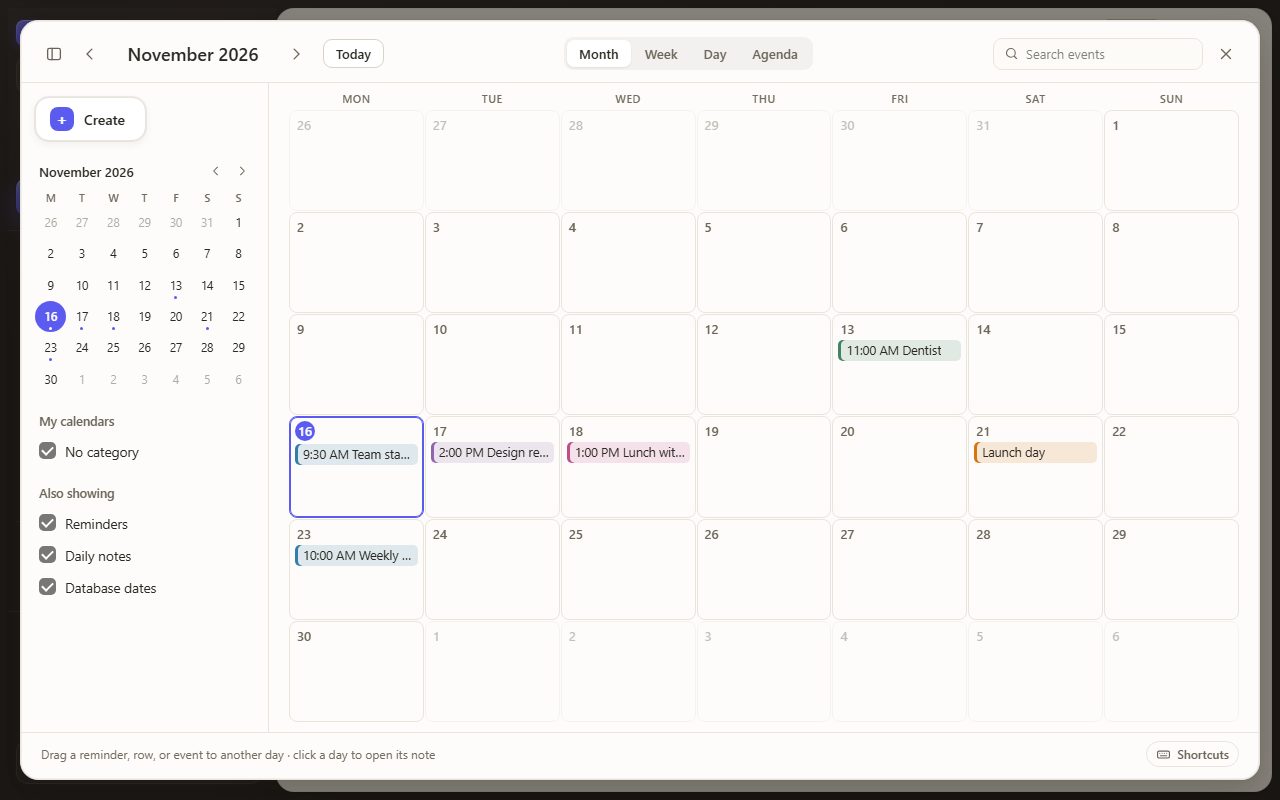
Daily Notes gives each day its own page. Weekly agenda lays out the week ahead.
Projects, goals and habitsAll plans
Projects turns your task databases into projects. It shows each project's health, its overdue and blocked tasks, a roadmap and who is working on what. Choose New project to create one with its first tasks.
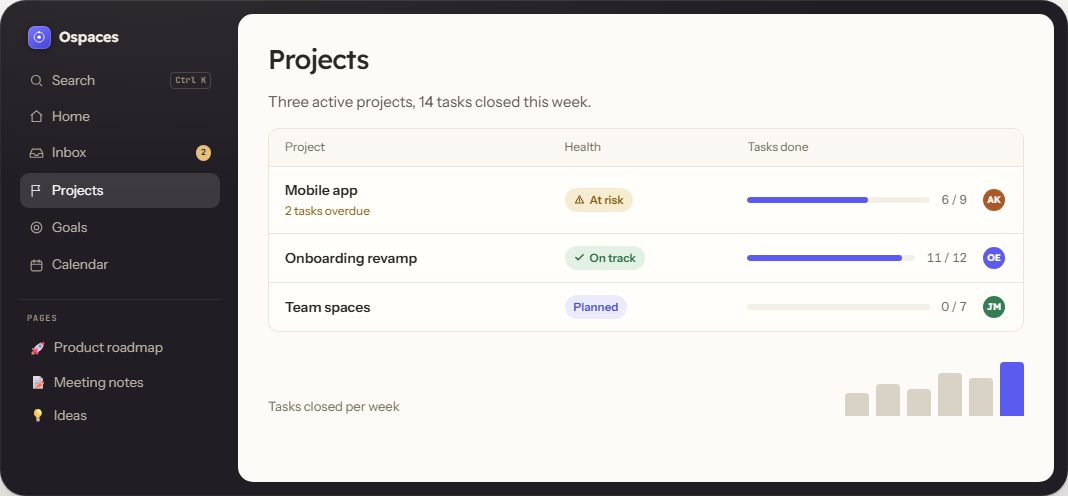
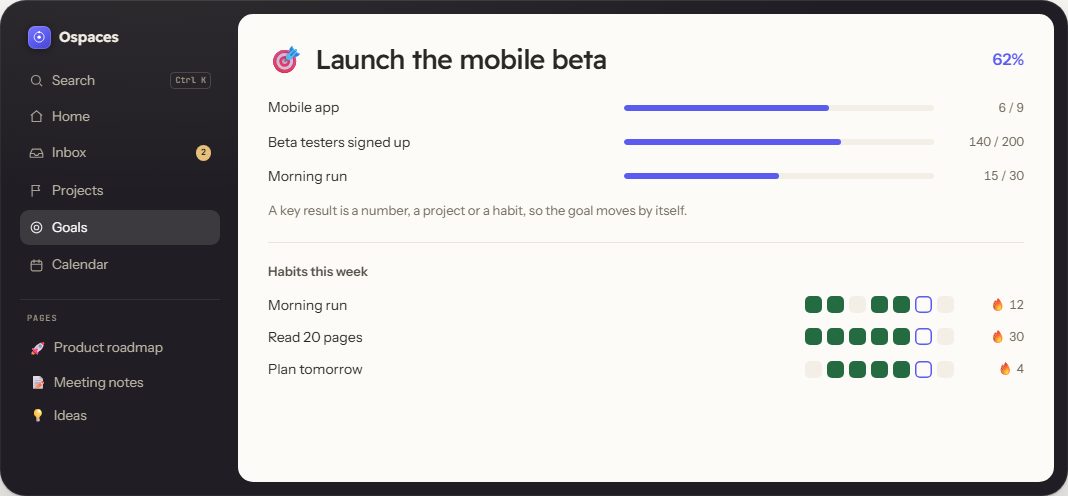
Goals & habits tracks goals and the habits that serve them. A goal's key results can be a number, a project's progress, or a habit's check-ins, so the goal moves by itself.
- Open Goals & habits and add a habit. Choose every day, certain weekdays, or a number of times a week.
- Tick a habit from the Goals page or from Home.
- Add a reminder time to a habit to get one notification on the days it is due and not done.
Capture, meetings and readingAll plans
Quick capture saves a thought in a second, to today's note or to a new page. Voice notes records you, writes down what you said, and can turn it into a summary, a list or a clean note before you add it to a page.
On a meeting page, choose Record meeting. When you stop, Ospaces writes the transcript, then a summary, the decisions and the action items. Nothing becomes a task until you pick it.
The Reading list keeps links to read later, with notes and stars. Share a link to Ospaces from your phone to save it, or import your browser's bookmarks.
Ask AIAll plans
Ask AI writes, summarizes, translates and answers. Open it from the sidebar or with Ctrl+J. Select text on a page to rewrite or shorten it.
With a confirmed email, Ask AI works without a key of your own, within a daily allowance. You can also add your own key in Settings, under AI.
In the same place, Manage AI providers & keys connects Anthropic, Groq, OpenAI, OpenRouter or any OpenAI-compatible model with your own key.
Ask AI can also answer questions about your own pages, and shows the pages it used. Encrypted pages are never read.
Learn from a page
Quiz me on this page in the page menu asks you questions about the page, one at a time. Ospaces remembers your score and brings the page back for review when it is due. Missed questions can become flashcards for Review.
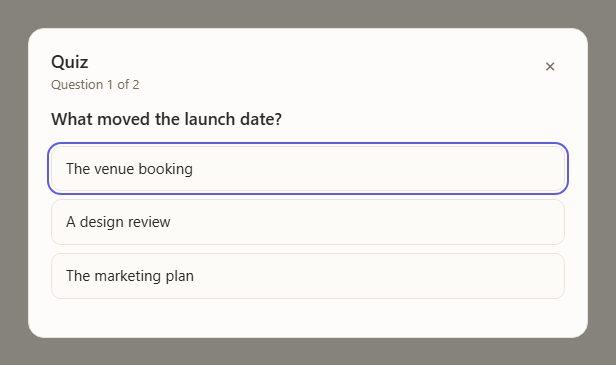
Translate page… makes a translated copy of the page as a sub-page. The original never changes.
Automations and reportsAll plans
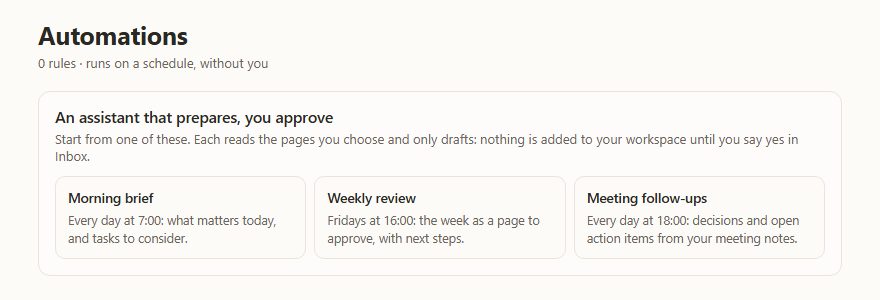
Automations runs work on a schedule or when a database changes: create a page every Monday, send a reminder, fill a property with AI, or call a webhook.
A scheduled report reads the pages you choose and writes a summary for you, such as a morning brief or a weekly review. It can suggest tasks and a page, which wait in your Inbox until you approve them.
Privacy, security and backupsAll plans
- Encrypted pages: Encrypt page in the page menu locks a page with a passphrase. Its text is never stored, searched or sent to AI unencrypted. Keep the passphrase safe: it cannot be recovered.
- Two-step verification: turn it on in Settings, under Security. You can also see your signed-in devices and sign out of the others.
- Offline: in Settings, under Workspace, turn on Keep pages available offline (beta). Pages you opened stay readable offline, and your own pages stay editable; your edits sync when you are back.
- Backups: Workspace has Export all pages as Markdown (.zip) and Full backup & restore (.json). Version history in the page menu brings back an earlier version.
- Deleting your account: from Settings, under Security. You have 14 days to change your mind.
Prayer times and the Hijri calendarAll plans
Turn on prayer times in Settings, under Preferences. Home then shows the next prayer and today's times for your city, calculated on your device; your place is never sent anywhere. In Ramadan it also counts down to iftar and imsak.
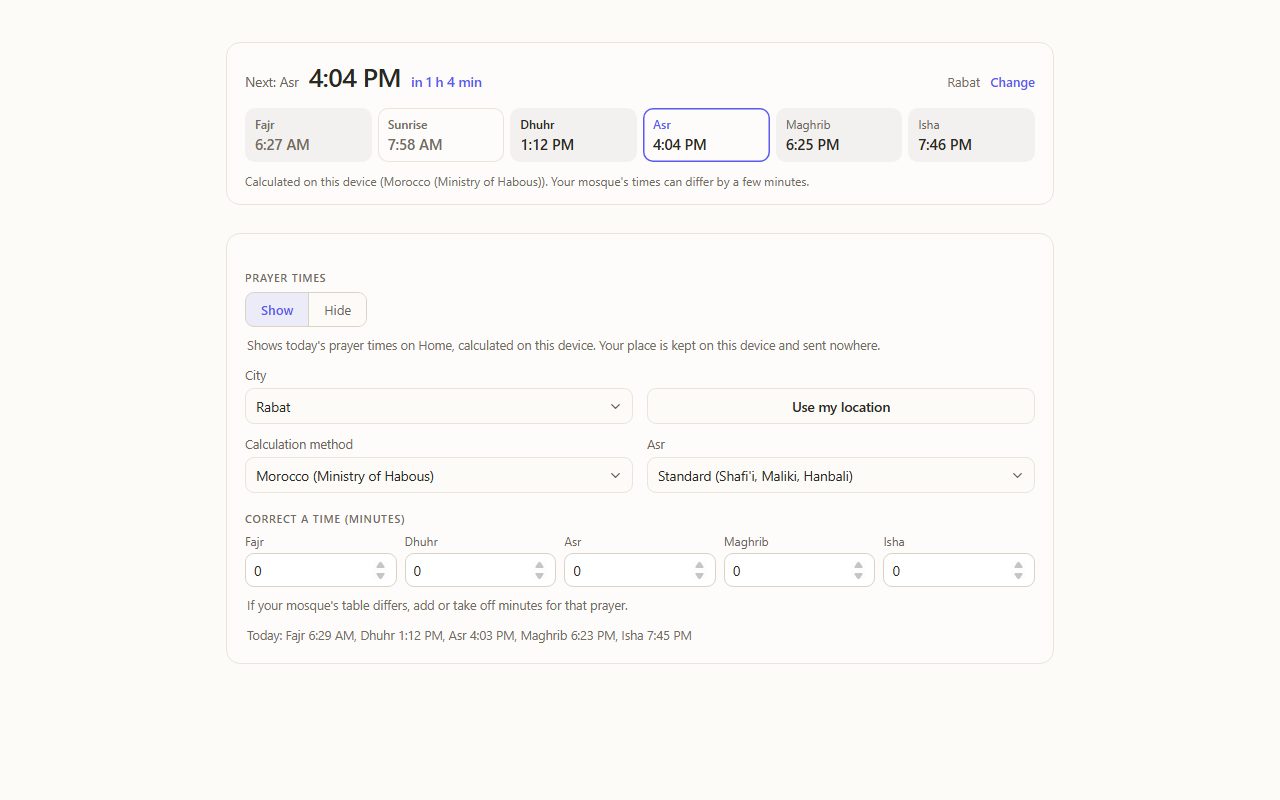
Hijri dates appear beside the usual ones on Home, in Daily Notes and in the Calendar. If your country starts the month on a sighting of the moon, move the date by a day in the same settings.
PlusPlus and above
Plus adds two database views for people who work with numbers and other people's answers.
- Chart views: bar, column, line, area, pie and donut charts from any database. Open a database, add a view, and choose Chart.
- Forms: a public link where anyone can answer your questions, with every answer saved as a row. Open a database, add a view, and choose Form.
BusinessBusiness and above
Business is for teams that need to find, trust and control what they write.
- Workspace-wide search: one search across pages, databases, rows and actions, with filters. Open it with Ctrl+P.
- Custom agents: AI assistants with their own instructions, grounded in your workspace. Open Agents in the sidebar. In review mode an agent only drafts pages, tasks and edits, and you approve them in your Inbox.
- Verified pages: mark a page as the trusted version with Verify page in the page menu. The badge shows wherever the page appears.
- Database permissions: lock a database's rows or structure, and share it with chosen people and teams.
EnterpriseEnterprise
Enterprise adds controls for organizations. Everything is in Enterprise in the sidebar.
- AI usage: see use per model and set the default model for the workspace.
- Audit log: a record of who did what across the workspace, with JSON and CSV export.
- Data and security: zero data retention mode, and one click to remove every AI key stored on a device.
Coming soon
These are built and being prepared. Until they open, a button or setting for one of them may already show in the app without working yet.
- Paid plans and billing.
- Connections to Google Calendar, Slack and GitHub.
- Saving to Ospaces from Telegram and by email.
- Your own domain for published sites.
- The Ospaces Clipper browser extension for Chrome and Firefox.
Keyboard shortcuts
On a Mac, use Cmd where the list says Ctrl.
| Shortcut | What it does |
|---|---|
| Ctrl+K | Open the quick palette: jump to a page or run any action |
| G N | New page (press G, then N) |
| Ctrl+J | Open Ask AI |
| Ctrl+P | Workspace-wide search (Business; the quick palette on other plans) |
| Ctrl+Shift+L | Quick capture |
| Ctrl+/ | Show every shortcut |
| G H | Go to Home |
| G T | Go to My Tasks |
| G C | Open the Calendar |
| G P | Go to Projects |
| G O | Go to Goals and habits |
| Ctrl+\ | Show or hide the sidebar |
| / | Add a block, on an empty line |
| [[ | Link to another page |
| @ | Mention a person or a date |
| Ctrl+Z | Undo |
Help
If something is not working, the status page at ospaces.app/status shows the state of Ospaces' main services.